
Kemo IPTV Installation Guide – Setup on Compatible Devices
This guide walks you through the general Kemo IPTV setup process and points you to detailed, device-specific instructions. Choose your device below to get started, or review the general steps first.
WHAT YOU NEED BEFORE INSTALLING KEMO IPTV
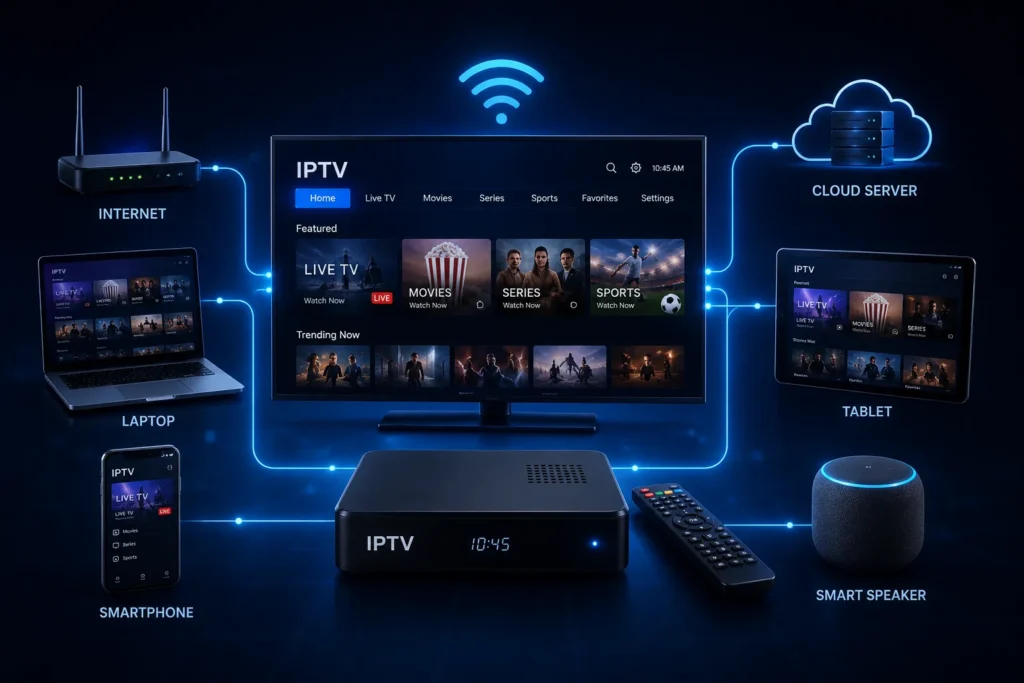
Compatible Device
A supported streaming device, Smart TV, phone, tablet, or computer.
Internet Connection
A stable connection is required for streaming to work properly.
Compatible IPTV Application
The IPTV service and the IPTV player app are separate — you’ll need an app installed to display the service.
Active Subscription
Your Kemo IPTV subscription and the setup information that comes with it.
Device Access
Access to your device’s app store or settings, depending on the platform.
CHOOSE YOUR DEVICE FOR KEMO IPTV INSTALLATION
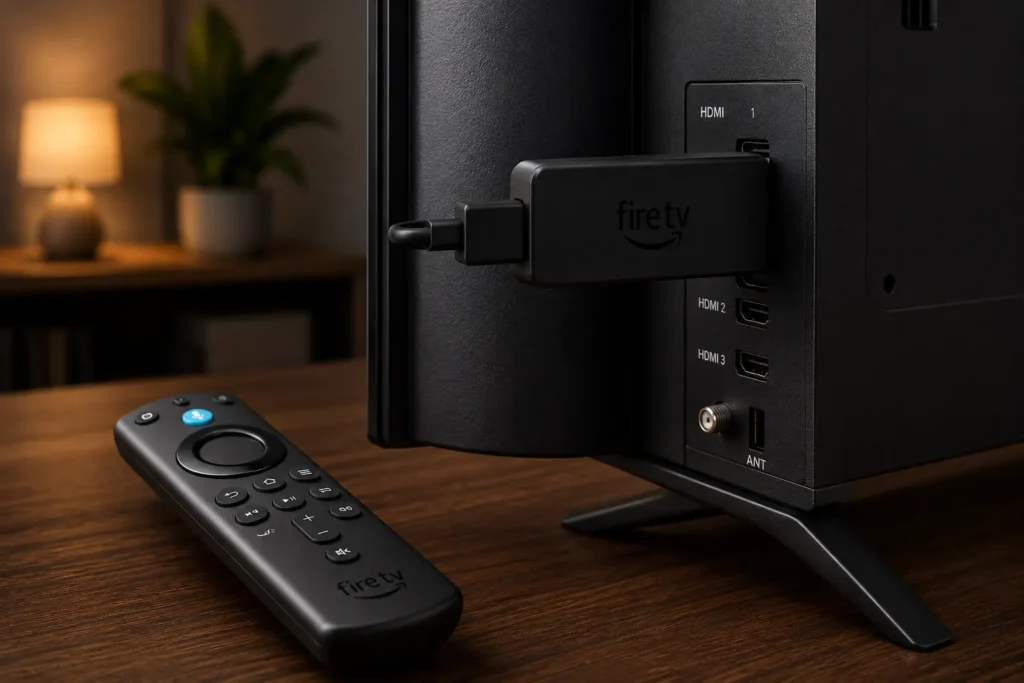
Amazon Fire TV / Firestick
A popular streaming platform that supports IPTV through a compatible app.
Install Kemo IPTV on Firestick → /kemo-iptv-firestick/
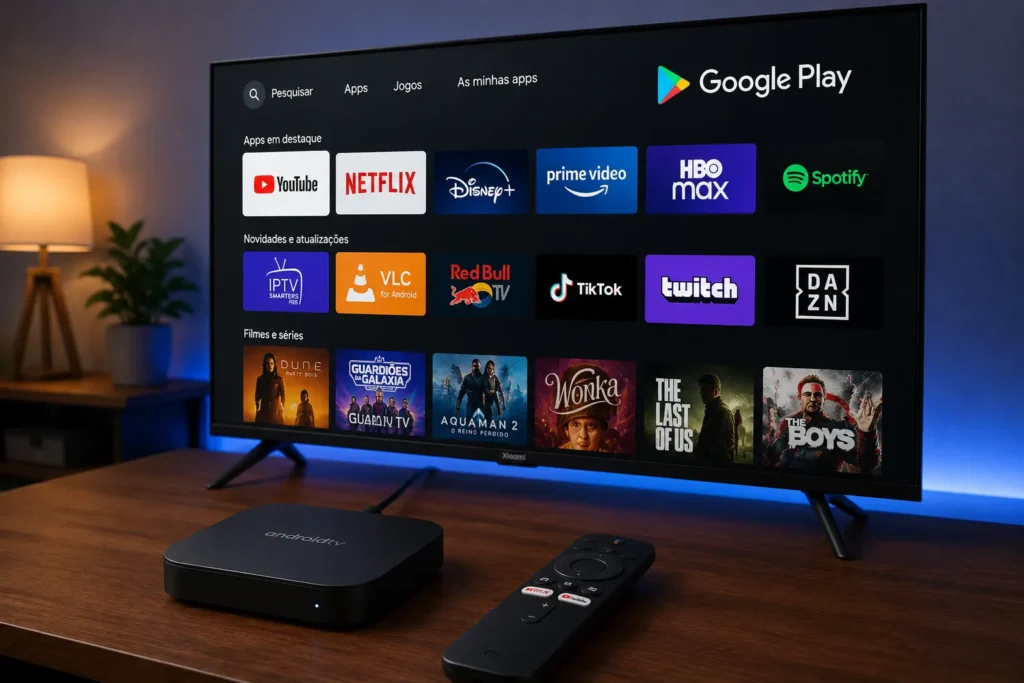
Android TV
Supports compatible IPTV players through the Android TV app store.
Install Kemo IPTV on Android TV
Samsung Smart TV
Runs on Tizen; app availability may vary by model and region.
Install Kemo IPTV on Samsung Smart TV
LG Smart TV
Runs on webOS; app availability may vary by model and region.
Install Kemo IPTV on LG Smart TV
Android TV Box
Flexible app installation, performance depends on device specs.
Install Kemo IPTV on Android Box
Apple TV
Runs on tvOS; setup differs from Android-based devices.
Set Up Kemo IPTV on Apple TV
Smartphone & Tablet
Compatible apps are available for Android and iOS devices for streaming on the go.
General Setup Guide
PC & Mac
IPTV access on computers typically uses a compatible web-based or desktop application.
General Setup Guide
GENERAL KEMO IPTV SETUP PROCESS
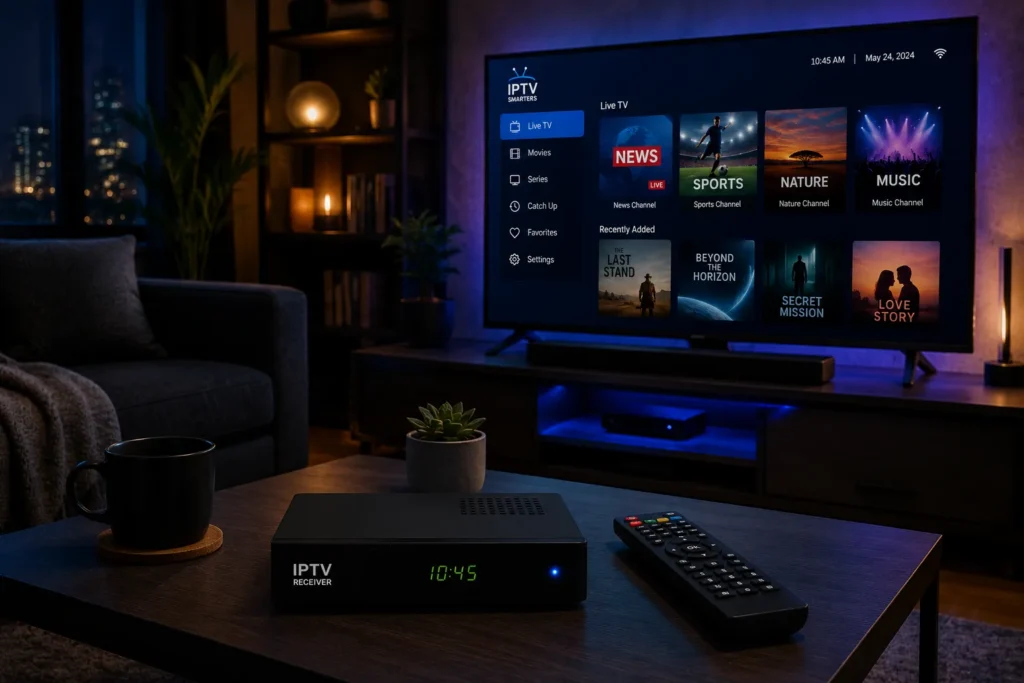
Step 1 — Select Your Device
Pick the device you’ll be streaming on from the list above.
Step 2 — Install a Compatible IPTV Player
Download and install an app that supports your device and setup method.
Step 3 — Open the Application
Launch the app once installation is complete.
Step 4 — Select the Appropriate Login/Playlist Method
Available methods vary by app and may include login credentials, an M3U playlist, or an Xtream-compatible login. Use only the method and details verified for your Kemo IPTV subscription.
Step 5 — Enter Your Verified Subscription Information
Input the setup details provided with your subscription exactly as given.
Step 6 — Configure the Guide/Playlist
Adjust playlist and guide settings within the app as needed.
Step 7 — Start Streaming
Once configured, you’re ready to begin watching.
HOW TO GET A BETTER IPTV STREAMING EXPERIENCE
After installation, your streaming experience depends on several factors:
- Internet speed
- Wi-Fi signal strength
- Ethernet vs. wireless connection
- Router performance
- Device performance
- Network congestion
- Video resolution
- Content source
We don’t promise zero buffering, guaranteed uptime, or perfect 4K on every setup — but a stable connection and updated device software go a long way.
KEMO IPTV INSTALLATION TROUBLESHOOTING
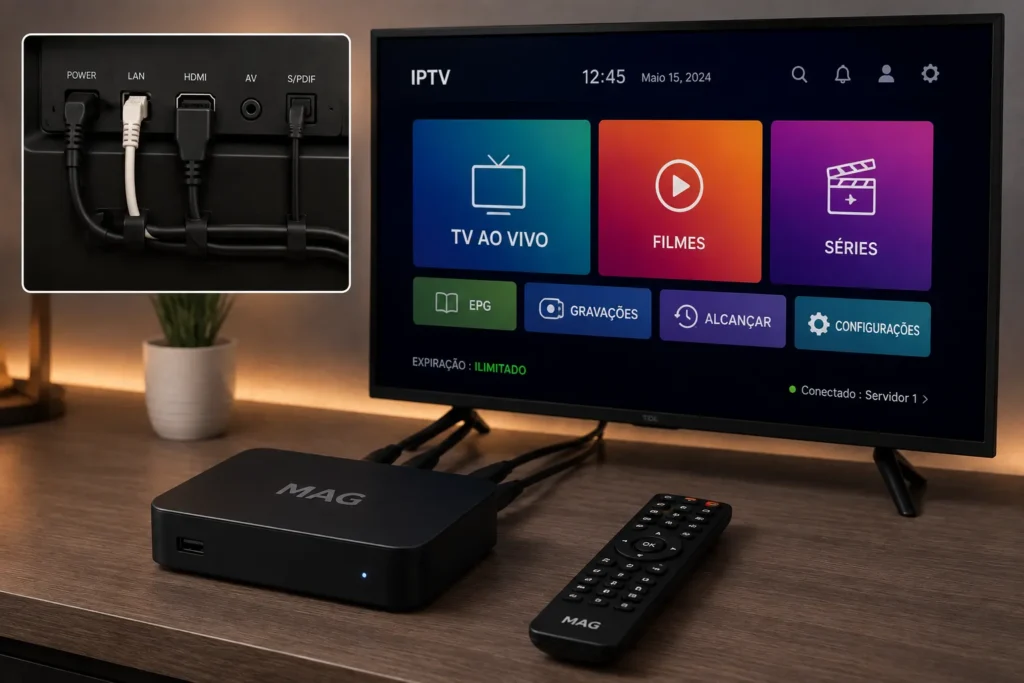
IPTV App Cannot Be Installed
Check that your device has enough storage and that you’re downloading from a trusted source compatible with your device model.
Login Information Is Not Working
Double-check your setup information for typing errors, extra spaces, or incorrect capitalization.
Playlist Does Not Load
This is often related to a network issue or incorrect playlist information — check your internet connection and re-verify your setup details.
EPG Is Missing
Some apps require separate EPG configuration or a short delay after setup before guide data appears.
IPTV Is Buffering
Check your internet speed, switch to Ethernet where possible, and close other apps using bandwidth.
App Freezes or Crashes
Restart the app, restart your device, and check for available app updates.
Device Cannot Connect
Confirm your Wi-Fi or Ethernet connection is active and your device has internet access outside the IPTV app.
Choose Your Kemo IPTV Subscription
Compare the available subscription durations and select the option that fits how you watch. Setup guidance is available every step of the way.